Color Palette Module
The Color Palette Module simplifies the color information of an image and extracts it into a proportionally displayed color theme, providing a clear preview of the image's color logic and structure. It helps you study and reference the color schemes of outstanding works. In addition to previewing, color themes can also be saved to notes or permanently exported as images.
Import Images
How to Import Images
- Click the upload button or click the image import area to select and import an image file.
- Drag and drop an image file into the import area.
- Ctrl+C to copy an image file, then Ctrl+V inside the application to paste and import. (Supports copying images from web pages and pasting into the application)
Supported Image Formats
Standard image formats: PNG, JPG, JPEG, GIF, BMP, TIFF, WEBP, ICO
Camera RAW formats (via LibRaw): CR2, CR3, NEF, NRW, ARW, SRF, ORF, RAF, RW2, PEF, DNG, RAW, SRW, X3F, 3FR, IIQ, RWL, KDC, DCR, ERF
Image Operations
Select All Button
Select all imported images.
Clear All Button
Deselect all selected images.
Delete Selected Button
Remove the selected images from the imported image list.
Color Theme
Color Count
The number of color blocks in the color theme. Fewer blocks produce a more generalized palette; more blocks extract richer color information. Selectable range is 5 to 12.
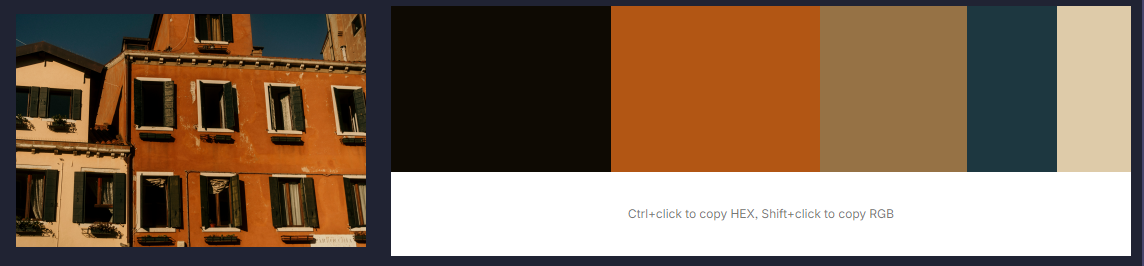
Color Count = 5
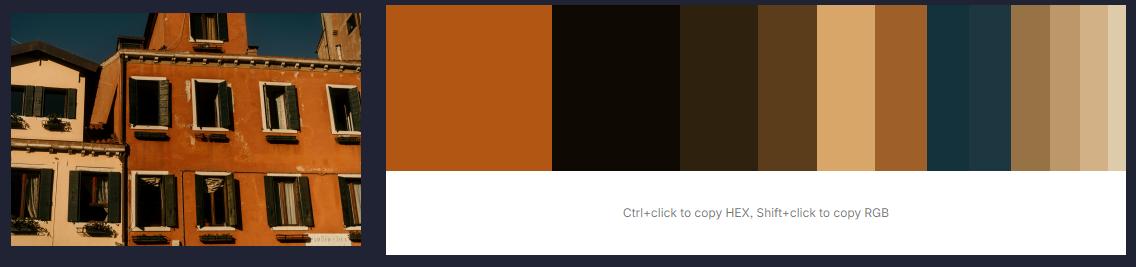
Color Count = 12
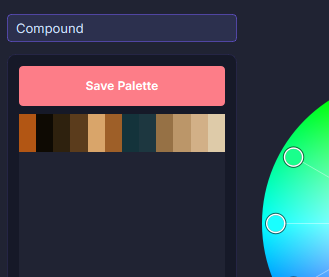
Save Color Group Button
Save the color theme of the selected image to the spare color group panel on the right, for easy reference and extraction during subsequent operations.
Preview Color Values
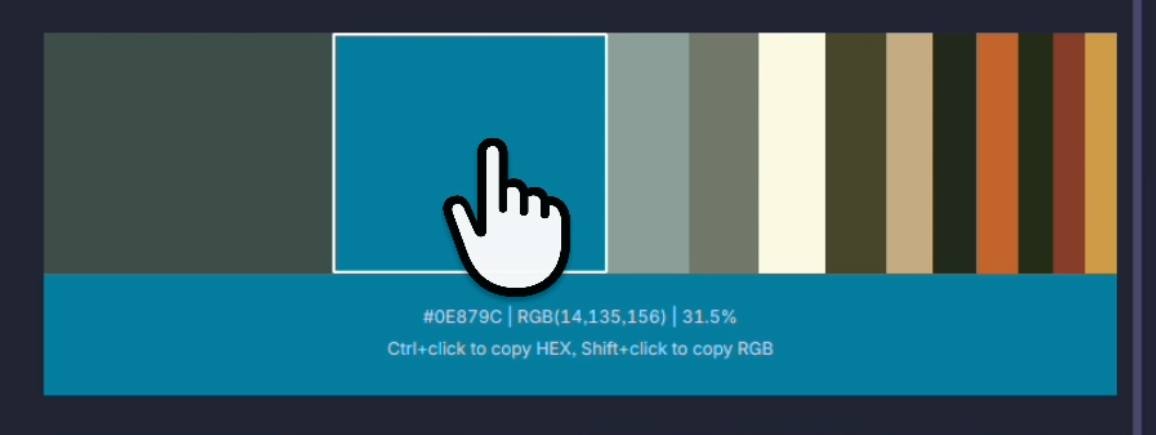
Area A: Image preview area.
Area B: Color theme preview area.
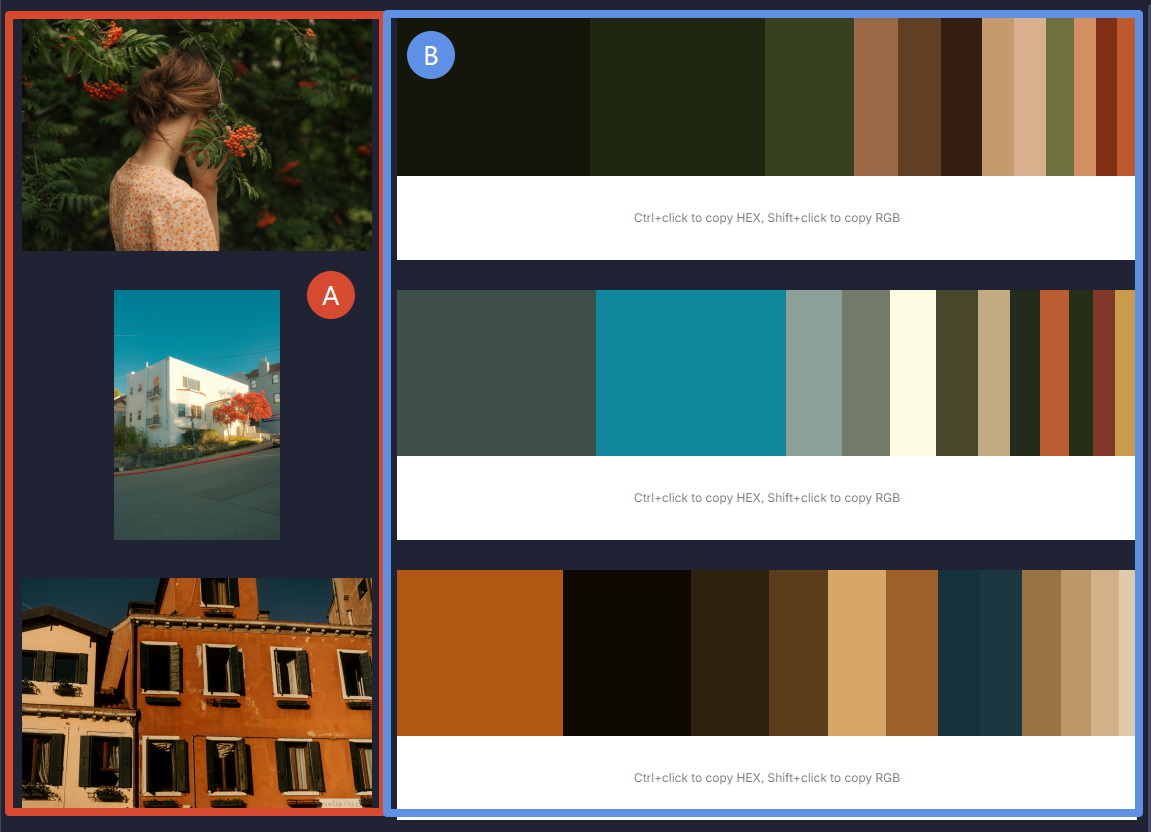
Top: Color blocks of the color theme. The block size reflects the proportion of that color in the image.
Bottom: Color information preview of the blocks, including HEX value, RGB value, and the proportion of that color in the image.
Ctrl+Click a color block = Copy HEX value
Shift+Click a color block = Copy RGB value
Export
You must first select an image, then click Export.
Color Block Count: The number of exported color blocks matches the color count selected during preview.
Export Mode Slider
With Image: The exported color theme image includes the original image.
Color Bar Only: Export only the color theme blocks, without the original image.

Export result with "With Image" selected.
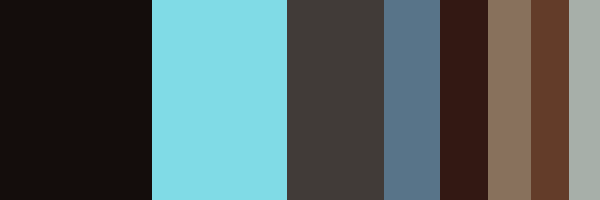
Export result with "Color Bar Only" selected.
Color Bar Position
Which edge (top, bottom, left, or right) of the original image the color bar is placed on.
The color bar position can only be selected when the export mode slider is set to "With Image".
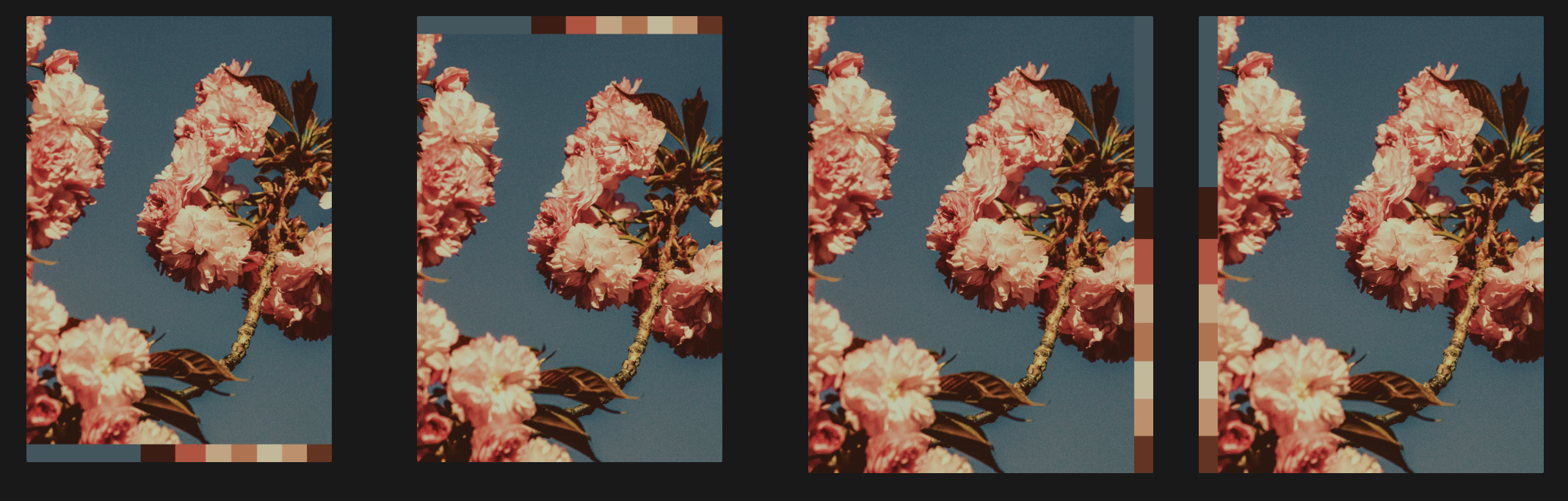
Effect when the color bar position is set to Bottom, Top, Right, and Left respectively.
Color Bar Width
The width of the exported color bar can be customized, with an input range of 10px to 200px.
Color Bar Length
The length of the exported color bar can be customized, with an input range of 400px to 4000px.
The color bar length can only be adjusted when the export mode slider is set to "Color Bar Only", since in "With Image" mode the length matches the edge of the original image.
With HEX
Whether to display the corresponding HEX value on each color block of the exported color bar.

With HEX enabled

With HEX disabled